How to set up a wireless printer
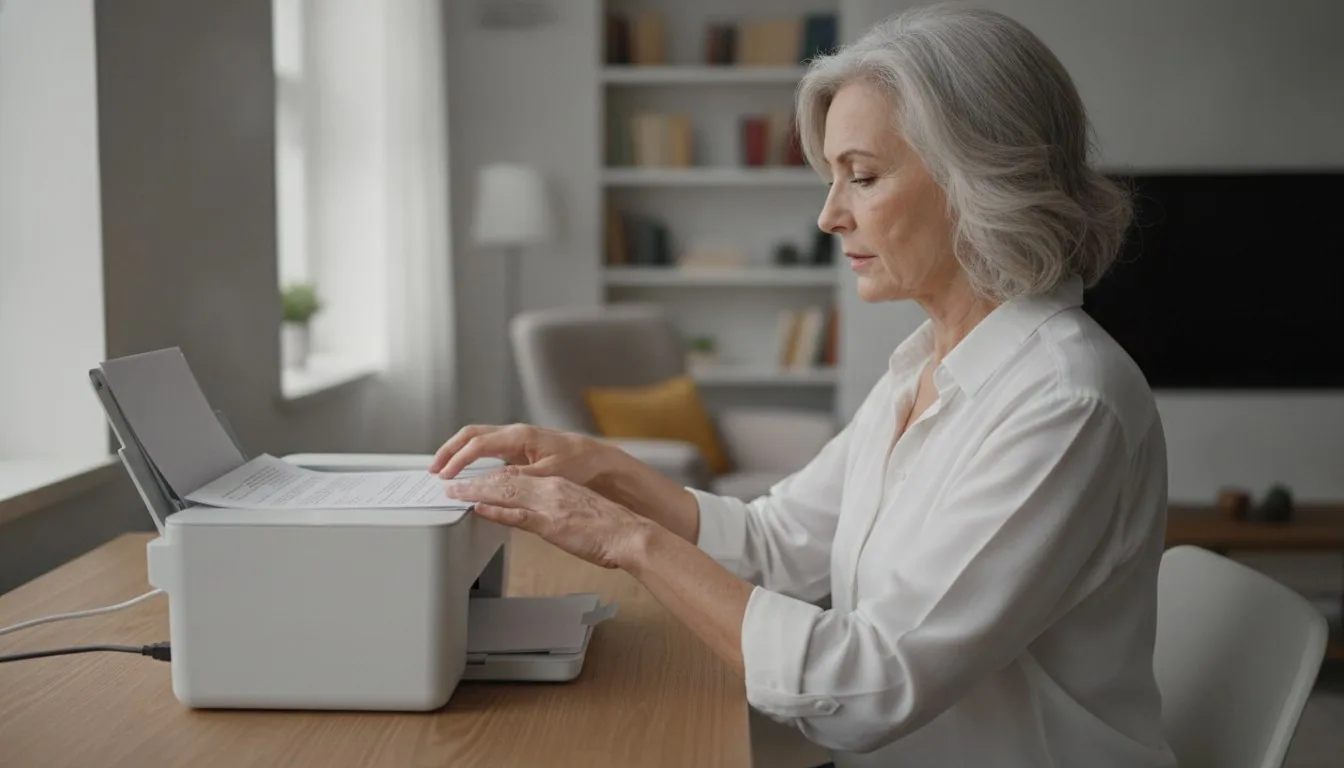
- There are three connection paths, and every wireless printer uses at least one: the WPS push button, a manufacturer setup app, or Wi-Fi Direct. Knowing which your model supports removes most of the guesswork.
- The WPS button is the fastest route, but the WPS PIN method has a documented brute-force flaw. CERT/CC recommends disabling WPS PIN and sticking to the push button or the app.
- Wi-Fi Direct connects a laptop or phone to the printer with no router in between, per the Wi-Fi Alliance, which is handy for guests or a home with no working network.
- Adding the printer to a laptop or phone is a separate step from getting it onto the Wi-Fi; each device has to discover it once through the operating system's print settings or a printing service like AirPrint or Mopria.
- Wireless convenience comes with the occasional dropout a USB cable never has, so it is worth deciding whether you actually need wireless before buying.
Unplug the unit before any cleaning or filter work.
Find out which method your printer uses
Check the quick-start leaflet or the printer's on-screen network menu to see whether it supports the WPS push button, a manufacturer setup app, or Wi-Fi Direct. Most home printers use the app or the WPS button and many support both, so identifying yours tells you which method to follow and which to skip.
Join your Wi-Fi with the WPS button
Hold the Wi-Fi or WPS button on the printer until the light blinks, or pick WPS from its network menu, then press the WPS button on the router within about two minutes. The two pair on their own and the printer joins the network without you typing the password. Leave the WPS PIN method off, since it carries a documented brute-force flaw.
Or set it up with the manufacturer's app
On a phone, install the maker's app, such as HP Smart or Canon PRINT, and follow its prompts to hand the printer your Wi-Fi name and password. The app tends to be the most reliable route on current models and sets up scanning and ink or toner status in the same flow.
Use Wi-Fi Direct when there is no router
Turn on Wi-Fi Direct from the printer's menu, then choose the printer's own network from your device's Wi-Fi list and enter the passphrase the printer shows. This links one device straight to the printer with no access point, though that device usually loses internet on the connection until it rejoins your normal Wi-Fi.
Add the printer to each laptop
On Windows, open Settings, go to Bluetooth and devices, then Printers and scanners, and choose Add device. On a Mac, open Printers and Scanners in System Settings and click Add. Both pull the driver automatically for most current models once the printer and laptop share the same network and band.
Add the printer to each phone
Put the phone and printer on the same Wi-Fi network. On iPhone, tap Print in the share sheet, which uses AirPrint; on Android, use the built-in default print service or Mopria. For borderless photos, two-sided settings, or ink levels, use the manufacturer's app instead of the built-in service.
| Quick Facts | |
|---|---|
| Connection paths a wireless printer can use | 3 (WPS button, setup app, Wi-Fi Direct) |
| Typical WPS push-button pairing window | about 2 minutes |
| WPS PIN length (CERT/CC VU#723755) | 8 digits, last is a checksum |
| WPS PIN guessing space after the design flaw (CERT/CC) | about 11,000 attempts |
| Wireless home printers compared in our guide | 10 models across 4 brands |
The three ways a wireless printer connects
Every wireless printer joins your network through one of three paths: a WPS button press, the manufacturer's setup app, or a direct device-to-printer link over Wi-Fi Direct. Identifying which one your model supports is most of the battle.
Shopping for a specific model? See our full home printers roundup — 10 models compared on the specs that decide it.
Before touching a single setting, it helps to know that 'how to set up a wireless printer' is really three different questions wearing one label. The first path is the WPS push button, where the printer and router pair themselves after you press a physical button on each within a short window. The second is the manufacturer's app, which walks a phone through joining the printer to your home Wi-Fi step by step and tends to be the most reliable on modern models. The third is Wi-Fi Direct, a direct link between one device and the printer that skips the router entirely.
Most home printers wireless setups run on either the app or the WPS button, and plenty of models offer both. The HP OfficeJet Pro and Smart Tank all-in-ones set up through the HP Smart app, usually the smoothest route on a current model. The smallest travel units are a separate case: a thermal portable like the NDYIN model does not join your Wi-Fi at all, it pairs to a single phone over Bluetooth instead. Sorting out which camp your printer falls into, usually a line in the quick-start leaflet or a menu on the printer's own screen, tells you exactly which of the following sections to read and lets you skip the other two.
How to set up a wireless printer with the WPS button
Put the printer into WPS mode, then press the WPS button on your router within about two minutes; the two pair automatically and the printer joins the network with no password typed. Avoid the WPS PIN variant, which has a known security flaw.
The push-button method is the quickest way to set up a wireless printer that supports it. On the printer, hold the Wi-Fi or WPS button until the light blinks, or select WPS from the network menu on models with a screen. Then press the WPS button on the router. The two negotiate credentials on their own, and the printer joins your Wi-Fi without you ever typing the password. The catch is timing: the pairing window is usually around two minutes, so start the router side promptly rather than wandering off.
One caution is worth the paragraph. Wi-Fi Protected Setup also has a PIN mode, and that mode carries a real weakness. CERT/CC's vulnerability note VU#723755 documents a design flaw in the eight-digit WPS PIN: the router leaks whether the first half of the PIN is correct, which collapses the guessing space from 100 million combinations to roughly 11,000, since the final digit is only a checksum. On routers with no lockout policy an attacker can work through that in hours; even one vendor's test with anti-brute-force measures still finished in about 189 hours. CERT/CC's recommendation is blunt: disable the external-registrar WPS feature. The push button is fine for a quick pairing, but leave the PIN method off and switch WPS back off afterward if your router lets you.
Wi-Fi Direct: printing without a router
Wi-Fi Direct links a phone or laptop straight to the printer with no access point in between, which is useful for guests or a home with no working Wi-Fi. The Wi-Fi Alliance designed it so devices can form their own network and find the printer directly.
Wi-Fi Direct answers a common problem: what if there is no router, or the guest should not get the Wi-Fi password? The Wi-Fi Alliance describes the technology as enabling devices to create their own Wi-Fi networks with no need for an access point, so a laptop or phone connects to the printer itself rather than to a shared network. In practice you turn on Wi-Fi Direct from the printer's menu, then pick the printer's Wi-Fi Direct network from your device's Wi-Fi list and enter the passphrase the printer shows.
Device and service discovery is the part that makes this pleasant. The Wi-Fi Alliance notes that a device can view what is available and request a connection, so the printer surfaces itself as a printer rather than as an anonymous network. That makes it a fit whenever a printer has to work away from a home network, or when the house Wi-Fi is down and you still need a page out. The trade-off is that while a device is joined to the printer's own network it is usually off your regular Wi-Fi, so it loses internet access on that connection until you switch back.
How to add a wireless printer to a laptop
Getting the printer onto Wi-Fi is only half the job; each computer still has to discover it. On Windows, open Bluetooth and devices then Printers and scanners and choose Add device; on a Mac, open Printers and Scanners in System Settings and click Add.
Once the printer is on the network, the question of how to add a wireless printer to a laptop is really about letting the operating system find it. On Windows, open Settings, go to Bluetooth and devices, then Printers and scanners, and select Add device; the printer should appear by its model name within a few seconds if both it and the laptop are on the same Wi-Fi. On macOS, the equivalent lives in System Settings under Printers and Scanners, where the Add button lists nearby printers. Both systems pull the correct driver automatically for most current models.
Manufacturer software is where the smoother experience lives, especially for all-in-ones. HP's OfficeJet Pro and Smart Tank lines, for instance, expect the HP Smart app, which handles the Wi-Fi handoff and the laptop install in one flow and exposes scanning and ink status the bare driver hides. If you are weighing an HP model specifically, our roundup of HP home printers compares the current lineup so you can match a setup method to a machine before buying. The one recurring snag: a laptop parked on a 5 GHz band sometimes cannot see a printer that only speaks 2.4 GHz, so if the printer never appears, confirm both are on the same band.
How to print from a phone to a wireless printer
Put the phone and printer on the same Wi-Fi, then use the built-in print service: AirPrint on iPhone, or the default print service or Mopria on Android. For features beyond basic printing, the manufacturer's app does more.
Phones handle this through a print service baked into the operating system, so knowing how to print from a phone to a wireless printer rarely means installing anything. On an iPhone or iPad, open the share sheet in almost any app, tap Print, and pick the printer; AirPrint discovers compatible models on the same network with no driver. On Android, the built-in default print service, or the Mopria service that underpins it, does the same job from the share or menu button. The one requirement that trips people up is that the phone and the printer have to sit on the same Wi-Fi network, not two different bands or a guest network.
Manufacturer apps add the extras the generic services skip. The HP Smart app, Canon's PRINT app, and their equivalents add double-sided settings, borderless photo printing, and ink or toner levels, and they can drive a printer over Wi-Fi Direct when there is no shared network to join. For a quick boarding pass or a school form, the built-in service is enough. For photos or anything with layout options, reach for the maker's app instead.
Do you actually need a wireless printer, and picking one
You need a wireless printer if more than one person or device prints, or if the printer sits away from a computer; a single desk user is often better served by a cheaper USB model. Wireless adds convenience at the cost of occasional connection hiccups.
It is worth answering do I need a wireless printer honestly before spending anything. If several people print from phones and laptops, or the printer lives in a closet or a shared room, wireless earns its keep. If one person prints from one desktop that never moves, a plain USB connection is cheaper, never drops mid-job, and needs none of the setup above. The honest trade-off with any printer home use wireless setup is reliability: a cable is boring and it always works, while Wi-Fi occasionally makes you power-cycle the printer to get it talking again.
If wireless is the call, the field is wide. For our guide to wireless home printers we compared ten current models across four brands, from compact NDYIN and Gloryang portables to HP and Canon all-in-ones, spanning budget travel units up to premium ink-tank machines. Ink-tank models cost more up front but shift the running cost downward, while a portable trades speed and paper capacity for the ability to print from a hotel room. If you would rather start from the whole category ranked on value, our best home printers guide lays the picks out side by side so the setup method and the machine get chosen together rather than one after the other.
Frequently asked questions
Do I need a wireless printer?
How do I add a wireless printer to a laptop?
How do I print from a phone to a wireless printer?
Is it safe to use WPS to set up a printer?
What is Wi-Fi Direct printing?
Why won't my wireless printer connect or stay connected?
Sources & references
- Wi-Fi Direct — Wi-Fi Alliance
- VU#723755: WiFi Protected Setup (WPS) PIN brute force vulnerability — CERT Coordination Center (CERT/CC), Carnegie Mellon Software Engineering Institute
- Wi-Fi Protected Setup — Wi-Fi Alliance