| Quick Facts | |
|---|---|
| NARA minimum resolution for legible text scans | 300 ppi |
| NARA recommended resolution for archival bitonal (black & white) scans | up to 600 ppi |
| Section508.gov baseline scan settings for reliable OCR | 300 DPI grayscale / 600 DPI color |
| Largest auto document feeder in our document scanner comparison | 100-page ADF |
| Second-largest auto document feeder capacity in the same comparison | 50-sheet feeder |
Flatbed, sheet-fed, or your phone: picking the right tool
A flatbed scanner works best for single sheets, books, and delicate originals, a sheet-fed document scanner is built for stacks and double-sided jobs, and a phone camera app covers quick one-off scans without any extra hardware.
Shopping for a specific model? See our best scanners picks — 10 models compared on the specs that decide it.
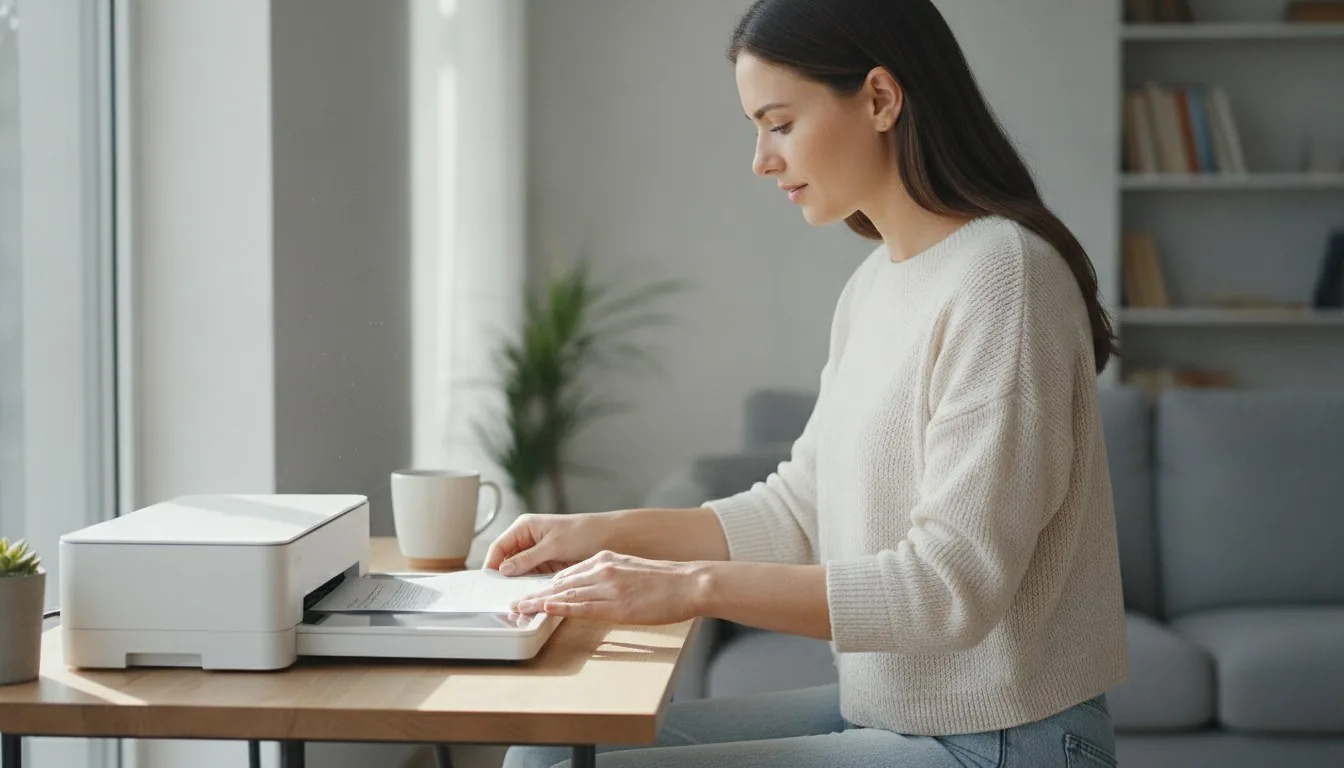
Two very different machines both get called a scanner, and mixing them up explains a lot of the frustration people run into. A flatbed scanner has a glass bed and a lid: place one page down, close the lid, and a sensor passes underneath. It handles books, ID cards, torn paper, and anything you would not want fed through rollers. A dedicated document scanner instead pulls paper through an automatic document feeder, one sheet after another, the setup for scanners for documents that arrive in stacks: contracts, statements, forms, receipts.
The flatbed scanner vs document scanner question really comes down to volume. Scanning one page a week is fine on a flatbed or a phone camera. Clearing out a filing cabinet or processing daily mail is where an ADF-equipped machine earns its keep, since it removes the page-by-page babysitting a flatbed demands. Our document scanner guide breaks down feed capacity, duplex support, and speed across current models if that is the direction you are headed.
Phones close the gap for occasional use. Modern camera scan modes crop edges automatically, flatten perspective distortion, and export straight to PDF, genuinely fine for a signed form or a single receipt. Phones fall behind on anything multi-page or double-sided, where a flatbed forces a place-capture-flip-repeat cycle every sheet, and a phone adds a stitching step a real document scanner skips.
What actually happens when you scan a document to PDF
Scanning a document to PDF means capturing the page as an image at a chosen resolution, then packaging that capture into a PDF file instead of a JPEG or TIFF. That output format gets picked before you scan; nothing needs converting afterward.
Most confusion around this task comes down to one small detail: PDF is an output format chosen in advance, sitting in the same dropdown as JPEG, TIFF, or PNG. Open the scanner software or the phone's scan app, find the file-type or format setting, and switch it to PDF before capturing anything. Scan first and convert later, and the extra work was self-inflicted.
Behind that setting, the scanner does the same basic job no matter the output format. A sensor sweeps across the page, or the auto document feeder pulls the page across a fixed sensor, captures it at a set resolution, and the software wraps the image in a PDF container. Multi-page jobs work by appending each new capture to the existing file rather than starting a new one each time, which is the setting to look for if the software keeps saving separate single-page files instead of one combined document.
Resolution is worth setting deliberately rather than leaving on a default nobody has ever checked, since it decides how sharp the text looks on screen and how well OCR reads it later.
Scanning multiple pages and double-sided documents into one file
An auto document feeder combines multiple pages into a single PDF automatically, and a duplex feeder scans both sides of every sheet in one pass; without duplex hardware, two-sided pages still work with a flip-and-rescan method.
This is where the two machine types genuinely split. A document scanner with an auto document feeder loads a stack once and works through it unattended, appending each page to the same PDF as it goes, which is the straightforward answer to how to scan multiple pages into one pdf without stitching files together by hand. Feed capacity varies by model; in our own comparison of current document scanners, the largest auto-feed tray held 100 sheets at once, while another model handled 50 sheets per load.
Double-sided scanning depends on whether the feeder is duplex or simplex. A duplex ADF has sensors on both sides of the paper path and captures front and back in the same pass, which answers can scanners scan double sided directly: yes, but only the ones built with that second sensor. A simplex feeder, or a flatbed, needs a two-pass workaround instead — scan every front page first, flip the stack, then scan the backs, and let the software interleave the pages into order. That covers how to scan double sided documents on hardware not built with duplex in mind.
Anyone scanning double-sided paperwork often should check for duplex support before buying. For a once-in-a-while job, flip-and-rescan costs a few extra minutes and needs nothing extra.
Making the scan searchable with OCR
OCR, optical character recognition, reads the text inside a scanned image and layers selectable, searchable text underneath it, turning a flat picture of a page into a document that can be searched, copied from, and read by assistive technology.
A freshly scanned PDF is just a picture of a page. It cannot be searched, a sentence cannot be copied out of it, and a screen reader has nothing to read aloud. Running OCR fixes that by recognizing the characters in the image and embedding an invisible, selectable text layer behind the picture, what people mean by searchable pdf ocr. Most scanner software and standalone PDF tools include an OCR pass as an option, sometimes on by default.
OCR accuracy depends heavily on the resolution used at capture. Section508.gov's federal accessibility training sets a baseline of 300 DPI for grayscale content and 600 DPI for color content specifically because reliable text recognition needs that much detail to work. Scan much lower and the software starts guessing at letters, producing what that same training calls 'OCR suspects': words it flagged as uncertain and left for a human to fix.
The honest limitation here is that OCR is not perfect, especially on handwriting, faded ink, or unusual fonts, and federal accessibility guidance treats a first OCR pass as a draft that still needs proofreading and, for public documents, tagging before it counts as fully accessible. For a personal file only being searched later, the default pass is usually good enough without any extra cleanup.
Emailing, saving, and keeping scanned paperwork organized
Many scanners and scan apps include a direct scan-to-email or scan-to-cloud option, and for records that need to be kept and retrieved later, a consistent file-naming and folder system matters more than which scanner captured the page.
Getting a scan into someone else's inbox is usually built into the software rather than a separate step. Look for a scan-to-email or scan-to-cloud-folder profile in the scanner's app, which saves the PDF and opens or attaches it to an email in one pass, and that is the short answer to how to scan a document and email it. Phones make this simpler still, since the scan app and the email app already live on the same device.
College and university portals lean on this constantly: admissions forms, transcripts, ID verification, and financial aid documents tend to arrive as a required PDF upload, likely what brings people searching for scans university in the first place. Campus libraries and print centers almost always keep a document scanner on hand for this, so owning a personal one is not a requirement just because a portal demands a PDF.
For paperwork being kept rather than sent, tax records, receipts, contracts, retrieval matters more than capture. The IRS's Revenue Procedure 97-22 allows scanned images of paper records to stand in for the originals, provided the system reproduces them completely and lets a specific document be pulled up on request. In practice a sane folder structure matters almost as much as the scan itself. Readers dealing mainly in receipts and paper-based bookkeeping might get more out of our guide to Neat-style organizer scanners, built around that workflow, than from a general-purpose document scanner.
Why are my scans blurry, and how do you fix it
Blurry scans almost always trace back to a low resolution setting, a smudged scan glass or feeder roller, or page movement mid-scan, not a defective scanner.
Text that looks fuzzy or fringed on screen is rarely the scanner's fault. The most common cause is a resolution setting left too low for the job: scanning a dense invoice at a setting meant for a quick snapshot produces exactly the soft, smeared text people complain about. The National Archives' technical guidelines for digitizing textual records set 300 ppi as a practical floor for legible text scans and recommend stepping up to 600 ppi for bitonal, black-and-white, archival captures, numbers worth borrowing even for a scan kept just for personal use.
A dirty scan glass or feeder roller is the second usual suspect, easy to miss since the smudge is invisible until magnified across a whole page. Wipe the glass with a lint-free cloth before an important scanning session; if an auto document feeder keeps producing streaky lines on every page, the rollers or internal glass strip likely need the same treatment.
Movement during capture, a bumped desk, a page that shifted mid-pass, causes a softer, directional blur that resolution alone will not fix. The spec sheet undersells how much this matters: two scans at identical settings can look different depending on whether the page stayed flat and still. If a rescan at higher resolution with a clean glass still looks soft, the source document itself, a faded carbon copy or a low-quality photocopy, is probably the real limit.
Free scan-to-PDF software worth knowing about
Scanning to PDF for free does not require buying anything: the scan utility built into a computer's operating system, a phone's native camera-scan mode, and the free scan feature inside most cloud storage apps all cover the basics at no cost.
Free scan to pdf software is not a niche request; it is the default path for most people, since both major desktop operating systems ship with a built-in scanning utility that saves directly to PDF, no purchase required. Phones go further still, since the native camera-based document scanner on current phone platforms crops, straightens, and exports to PDF without installing anything extra.
Cloud storage apps frequently fold a scanner into their mobile app too, convenient when the file already needs backing up and sharing rather than sitting on a local drive. None of these free options match a dedicated document scanner's speed or feeder capacity for a genuinely large stack, but for the occasional form, receipt, or letter, they cover the job completely.
Where free software runs out of road is volume and durability. A phone held over a desk is not built for a couple hundred pages a week, and a bundled operating-system utility will not sort a duplex stack automatically. For that tier of use, our roundup of the best scanners across budgets compares dedicated hardware from entry-level to premium so a machine can be matched to how much scanning actually happens, rather than guessed at.