Smart TV settings to change after setup
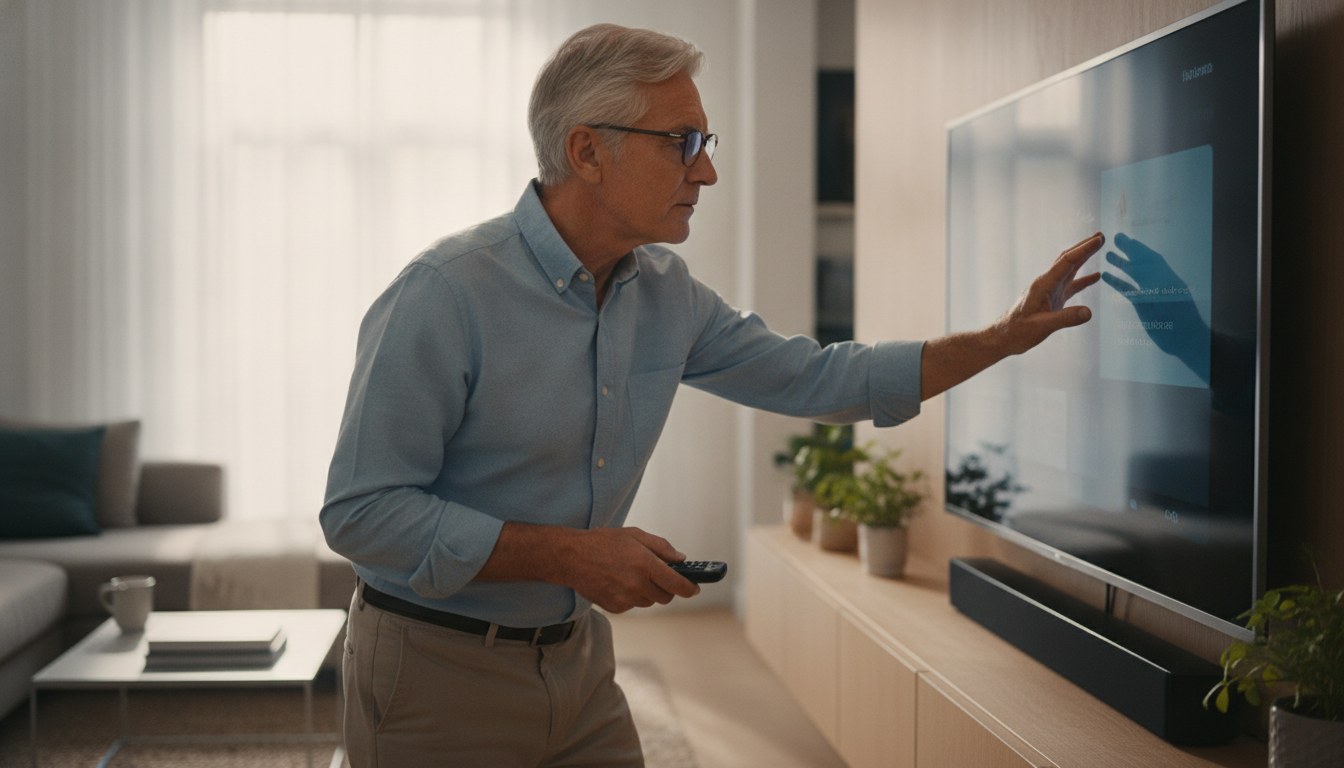
- Switch out of Vivid or Dynamic picture mode first; it's built to look bright on a showroom wall, not to match the Default SDR or Default HDR10 modes ENERGY STAR actually certifies.
- ENERGY STAR-certified TVs run about 34% more efficiently on average than conventional models, but only when left in their certified default picture mode rather than Vivid or a maxed-out custom setup.
- SDR broadcast and streaming content is mastered against Rec. 709 (ITU-R BT.709); HDR content targets the far wider Rec. 2020 (ITU-R BT.2020), and quantum-dot QLED panels have been shown reaching 90% coverage of that gamut, per SPIE-published research.
- Turn off motion smoothing for movies and scripted TV; leave it on for sports and fast games, where the frame interpolation cuts down on motion blur instead of creating a soap-opera look.
- Route audio through HDMI eARC, not the older ARC standard, if a soundbar or receiver needs to carry Dolby Atmos or DTS:X, since a TV's built-in speakers can't reproduce object-based height channels on their own.
Unplug the unit before any cleaning or filter work.
Switch out of Vivid or Dynamic picture mode
Start by opening the picture settings menu and switching away from Vivid or Dynamic, which most TVs default to right out of the box. Choose Standard, Movie, Cinema, or Filmmaker Mode instead, whichever label the brand uses, since these presets are built around the actual production standards the content was mastered against. It's the single biggest quality jump available before touching a single slider, and it also happens to be the mode ENERGY STAR actually certifies.
Set the backlight to match your room
With picture mode set, adjust backlight, or OLED Light on OLED panels, so it tracks the room's actual lighting instead of sitting at a fixed number. A dim, curtained room for evening movies wants a noticeably lower backlight than the same TV in a sunlit kitchen during the day. Leaving backlight maxed out in a dark room just crushes shadow detail and adds eye strain for no real benefit.
Dial in contrast without clipping highlights
Raise contrast slowly while watching a bright scene, a sky, snow, or a well-lit face, until detail starts disappearing in the highlights, then back it off a few clicks from that point. Contrast is the setting people damage a picture with the most when it's pushed too high, turning bright detail into a flat white blob. Leave sharpness close to its factory default too, since pushing it higher just adds a ringing outline around edges instead of genuine detail.
Confirm HDR10 is engaging on HDR content
When watching HDR content, check that the TV is actually switching into its HDR picture mode rather than staying in a standard SDR mode. HDR10 layers 10-bit color depth and static brightness metadata on top of the wider Rec. 2020 color space, and a set that isn't engaging it just tone-maps everything down into the narrower gamut it can already reach, leaving the picture flatter than the source was meant to look. This matters most on QLED and other quantum-dot panels, which lean on that wider color coverage to render HDR properly in the first place.
Turn off motion smoothing for movies, leave it on for sports
Turn motion smoothing off, or set it to its lowest strength, for movies and scripted TV, and the picture regains the cadence it was actually shot with instead of the soap-opera effect synthetic frames create. Leave it on for sports and fast-paced games, where interpolation reduces the motion blur from a camera pan or a quick view change rather than hurting the picture. Many TVs support separate picture profiles per input or content type, which avoids digging back into this menu every time you switch between a movie and a game console.
Route audio through HDMI eARC and mute TV speakers
If a soundbar or AV receiver is part of the setup, connect it through HDMI eARC rather than the older ARC standard, since eARC is what actually carries higher-bandwidth formats like Dolby Atmos or DTS:X out of the TV. Confirm both the TV and the soundbar are using ports labeled as eARC-capable. Once external audio is confirmed working, mute or switch off the TV's own speakers, since leaving both active is a common source of the sound clashes people mistake for a soundbar problem.
Recheck picture mode and standby settings periodically
Revisit picture mode every so often, since a software update, a factory reset, or someone else in the house can knock a TV back into Vivid or a maxed-out custom setup without you noticing. Also check that the TV isn't left in a quick-start or always-on networked standby mode, which draws measurably more power over a year than one that powers down fully between uses. A quick pass through these settings every few months keeps both the picture and the power draw in the range they were actually built for.
| Quick Facts | |
|---|---|
| ENERGY STAR certified TV average efficiency | about 34% more efficient than conventional models |
| ENERGY STAR standby power caps | 0.5 W passive standby / 1.0 W networked active standby |
| ENERGY STAR minimum dynamic luminance floors | 20 cd/m2 (SDR) and 10 cd/m2 (HDR10) |
| ENERGY STAR ambient test illuminance levels | 4, 17, 50, and 140 lux (ANSI/CTA-2037-C) |
| ENERGY STAR preset picture modes tested | Default SDR, Brightest SDR, Default HDR10 |
| ITU-R BT.709-6 (Rec. 709, SDR HDTV standard) | approved June 2015 |
| ITU-R BT.2020-2 (Rec. 2020, HDR/UHDTV wide color gamut standard) | approved October 2015 |
| Quantum-dot LCD (QLED) color gamut coverage | up to 90% of Rec. 2020 (SPIE-published research) |
Smart TV settings to change after setup: start with picture mode
Switching out of Vivid or Dynamic picture mode for Standard, Movie, or Filmmaker Mode fixes more of a TV's picture problems than any slider adjustment.
Shopping for a specific model? See our full smart tv roundup — 10 models compared on the specs that decide it.
Turn on almost any TV straight out of the box and its default smart TV settings point to Vivid, Dynamic, or something branded just as loudly, a mode built to grab attention under fluorescent showroom lighting rather than reproduce anything close to what a director or broadcaster intended. Colors get pushed past their real values, sharpening gets cranked until edges look artificially crisp, and brightness climbs high enough to stand out from across a store aisle. None of that translates well to a living room.
Standard, Movie, Cinema, or Filmmaker Mode, the exact label depends on the brand, are the presets built around the actual production standards, and switching to one is the single biggest quality jump available before touching a single slider. It also happens to be the mode manufacturers actually certify: ENERGY STAR's own testing protocol for televisions checks three separate preset picture modes, Default SDR, Brightest SDR, and Default HDR10, and only the default settings carry the efficiency rating on the box. The US Department of Energy's consumer guidance backs that up, recommending that shoppers keep using the ENERGY STAR pre-set picture setting to hold onto the energy savings it was tested against.
If a TV is a few years old and even its Movie mode looks washed out or dim no matter what changes, that's sometimes a panel limitation rather than a settings problem, and our smart TV hub is a reasonable place to compare what current panels actually offer before you keep fighting the menus.
Backlight, brightness, and contrast: what actually needs adjusting
Backlight should track your room's lighting rather than sit at a fixed number, and contrast is the setting most people damage a picture with by pushing it too high.
Backlight and brightness sound like the same control, and manufacturers don't always help by using the terms loosely, but they do different jobs. Backlight (or OLED Light, on OLED panels) sets how much light the panel puts out overall, and it should track your room, not a fixed number. A dim, curtained living room for evening movies wants a noticeably lower backlight than the same TV sitting in a sunlit kitchen during the day; a backlight left maxed out in a dark room just crushes shadow detail and adds eye strain for no real benefit.
Contrast is the setting people damage a picture with the most. Pushed too high, it clips bright detail, turning a bright sky, snow, or a well-lit face into a flat white blob with nothing left in it. A practical way to set it: raise contrast slowly while watching a bright scene until detail starts disappearing in the highlights, then back it off a few clicks from that point. Sharpness works the same way in reverse; the factory default is usually already close to correct, and pushing it higher just adds a ringing outline around edges instead of genuine detail.
Local dimming, on sets that have it, controls how independently different zones of the backlight can dim. Leaving it on its default or medium setting avoids both the washed-out look of it being off and the visible blooming around bright objects that its highest setting can introduce on a lower-zone-count panel.
Color and HDR smart TV settings: what Vivid mode gets wrong
SDR content is mastered against Rec. 709 and HDR content against the far wider Rec. 2020, so a Vivid-mode saturation boost pushes colors well past what either signal was actually graded to show.
Color and HDR are the smart TV settings where Vivid mode does the most damage, because ordinary broadcast and streaming video is still mastered against Rec. 709, the color space defined in ITU-R Recommendation BT.709, currently in its sixth revision, approved in June 2015. A standard white-LED LCD panel is built to deliver Rec. 709 accurately on its own, so a Vivid or Dynamic mode's automatic saturation boost pushes colors past what that footage was ever graded to show, which is why skin tones read as sunburned and grass looks radioactive under showroom lighting.
HDR content is graded differently. Most of it targets Rec. 2020, the wider color-primary standard defined in ITU-R Recommendation BT.2020, approved in its current form in October 2015 and originally built for laser-projected cinema rather than a living-room TV. No ordinary LCD panel reaches that gamut on white-LED light alone, which is the whole reason quantum-dot films exist: research published through SPIE, the professional society for optics and photonics, demonstrated quantum-dot-enhanced LCD panels, the technology behind QLED, reaching 90% coverage of Rec. 2020, a gap plain LED panels can't close. HDR10, the baseline HDR format nearly every current 4K TV supports, layers 10-bit color depth and static brightness metadata on top of that, so a set that isn't actually switching into its HDR picture mode on HDR content just tone-maps everything down into the narrower gamut it can already reach, and the result looks flatter than the source was ever meant to.
QLED sets lean on that wider gamut hardest, since the quantum-dot layer is what buys them the extra coverage a plain LED backlight can't produce on its own. Our QLED smart TV guide is worth a look for how close current models get to that 90% figure in practice, before assuming a Vivid-mode color boost is doing the same job for free.
Motion smoothing and judder: when to turn it off
Turn motion smoothing off for movies and scripted TV to restore their natural cadence, but leave it on for sports and fast games, where it reduces motion blur instead.
Motion smoothing, sold under names like TruMotion, Auto Motion Plus, or Action Smoothing depending on the brand, works by generating extra frames between the ones actually recorded, interpolating movement to fill the gap. Film and scripted TV are shot at 24 frames per second, and layering synthetic frames on top of that cadence produces the so-called soap-opera effect: motion reads as unnaturally smooth and immediate, closer to a live camera feed than the deliberate motion blur a cinematographer built into the shot.
Turn it off, or set it to its lowest strength, for movies and scripted television, and the picture regains the cadence it was actually shot with. Sports and fast-paced games are the exception; interpolation there reduces the motion blur that comes from a camera panning across a field or a view flicking quickly in a game, and most viewers find the trade-off worth it in that specific context. Many TVs let you save separate picture profiles per input or content type, which avoids having to dig back into this menu every time you switch between a movie and a game console.
Sound settings most people never touch
A TV's built-in speakers can't reproduce object-based formats like Dolby Atmos on their own, and HDMI eARC, not the older ARC standard, is what carries those formats out to a soundbar.
A modern flat-panel TV is a few millimeters deep at the edges, which leaves no real room for speakers capable of reproducing bass or the height channels that object-based formats like Dolby Atmos rely on. The built-in "surround" or "virtual surround" modes on most TVs are digital processing doing its best with drivers that were never going to deliver true surround sound, and dialogue is usually the first casualty, buried under whatever the processing happens to be emphasizing.
If a soundbar or AV receiver is part of the setup, HDMI eARC is the connection that actually carries higher-bandwidth formats like Dolby Atmos or DTS:X back out of the TV; the older ARC standard caps out at compressed multichannel audio and can't pass those object-based formats through. Both the TV and the soundbar need eARC-capable HDMI ports, usually labeled as such, and the TV's own speakers should be muted or switched off once external audio is confirmed working, since leaving both active is a common source of the sound clashes people mistake for a soundbar problem. A Movie or Standard sound preset with dialogue enhancement turned on is a reasonable default for TV speakers alone; save the Dynamic Range or night-mode compression setting for late viewing when you don't want the loudest scenes waking anyone up.
Energy-saving settings that don't cost you picture quality
ENERGY STAR ties its efficiency rating to a TV's certified default picture mode, so switching to Vivid or maxing out the backlight steps outside the power draw the label on the box promises.
Picture and other smart TV settings are tied to energy use more than most people realize, and ENERGY STAR's own testing shows why. Certified sets are checked in three separate preset picture modes, Default SDR, Brightest SDR, and Default HDR10, each held to its own power limit based on screen size and how bright it actually runs; only the default mode carries the certification's efficiency promise, and switching into Brightest or a maxed-out custom setup steps outside the number printed on the box. ENERGY STAR-certified televisions run, per the agency's own figures, about 34% more efficiently on average than conventional models, but that gap assumes the TV is actually left in its certified default mode rather than pushed into Vivid.
Standby power is a smaller factor but a real one. ENERGY STAR caps passive standby at 0.5 watts and networked active standby, the mode that keeps a voice assistant or app data listening in the background, at 1.0 watts; a TV left in a quick-start or always-on networked mode draws measurably more over a year than one that powers down fully between uses. An ambient light sensor, on TVs that have one, adjusts backlight automatically as room lighting changes through the day, which is roughly the same idea behind ENERGY STAR's own test protocol, which measures on-mode power across four ambient light levels rather than just one dark-room reading.
None of these settings fix a genuinely dim, aging, or undersized panel, and if backlight, contrast, color, and motion settings still leave the picture short of what the room needs, our best smart TV guide is a more useful next stop than another round of menu digging.
Frequently asked questions
What's the first smart TV setting I should change?
Does turning off motion smoothing hurt sports or gaming?
Why does HDR content look flat or dim on my TV?
Do I need a soundbar if my TV supports Dolby Atmos?
Will changing picture settings really affect my electric bill?
Sources & references
- Purchasing Energy-Efficient Televisions — US Department of Energy, Federal Energy Management Program (FEMP)
- Televisions — ENERGY STAR (US EPA / US DOE)
- ENERGY STAR Program Requirements for Televisions, Key Product Criteria — US Environmental Protection Agency (EPA), ENERGY STAR
- Recommendation ITU-R BT.709-6: Parameter values for the HDTV standards for production and international programme exchange — International Telecommunication Union (ITU-R)
- Recommendation ITU-R BT.2020-2: Parameter values for ultra-high definition television systems for production and international programme exchange — International Telecommunication Union (ITU-R)
- Quantum dots for ultra-high color gamuts in LCDs — SPIE, The International Society for Optics and Photonics